We understand you’ve reached this page because you may be experiencing issues with the Bentley CONNECTION Client application. While there can be various reasons for such issues, it’s always recommended to first check for any regional or global outages by visiting https://status.bentley.com. If all services are currently functioning, this article will help you troubleshoot some common issues you may encounter.
FAQ: What is the CONNECTION Client application?
Alongside any Bentley software download, the CONNECTION Client application manages authentication, making sure each user has valid access at the start of each session. As a Bentley Education user, the CONNECTION Client will launch whenever you open an application, enabling you to securely sign in to the software and access Bentley’s software for free.
If there are issues with the CONNECTION Client or your login access permissions, it could prevent you from being able to access the software you want to use. Reported issues may be resolved through a new version release of an application. In order to resolve the issue occurring on your computer, you may need to uninstall and reinstall the CONNECTION Client to the newly released version.
FAQ: Where on status.bentley.com can I see if there are outages in my region?
- Go to https://status.bentley.com.
- Scroll down until you find Subscription Entitlement Services.

- Click the single-select dropdown (arrow pointing downward) and verify if CONNECTION Client shows a green checkbox.

- If the checkbox is green, please proceed with the following article.
- If there is an outage, check back until the issue is resolved before reaching out for additional support.
FAQ: Why am I getting a failure message when I try to log in using my Education account details?
To make use of the free access for Education users, you will need to use the most up-to-date version of the CONNECTION Client application, and you will need to log in using your Bentley Education credentials. If you are seeing an error on your launched application (e.g. MicroStation) and you have not yet logged in to the CONNECTION Client, make sure you enter your account details, the window may be minimized in the background of your computer.
If your CONNECTION Client Fails to Sign In, see: CONNECTION Client Fails to Sign In
FAQ: What if I am logged in and still receiving an error?
To resolve the error, you may need an up-to-date version of the CONNECTION Client application. If the application is not updated, you may continue to receive a failure message when you try to log in, even if you have the correct access permissions assigned to your account.
There are a range of reasons that the application may not have been updated. For example, you may have accidentally cancelled the notification asking you to update the CONNECTION Client. Or, if you are using the software on a school or public computer where system changes are managed by an IT administrator, the update request notification might be ‘hidden’ from users.
If your CONNECTION Client application is out of date, there are two ways to fix it:
- You can simply uninstall and reinstall the CONNECTION Client itself.
- Alternatively, you can uninstall the CONNECTION Client, and download and either install another Bentley software application or uninstall and reinstall the software you are using. (Downloading a Bentley software application such as MicroStation will automatically download a new version of the CONNECTION Client because your computer will require the CONNECTION Client in order to launch the software.)
Note: As an Education user, we recommend that you update your software applications when a new version is released or, at minimum, yearly when your education account needs renewal. By doing this, you will make sure you're using the most industry-relevant version of an application. In addition, the updates should improve your experience and should have resolved any existing bugs.
Login credentials
You may have previously logged in through the CONNECTION Client using a free trial. However, free trials are much more limited than the free access provided to Education users.
For free Education access, simply log in using your Education account credentials.
FAQ: I created an account on Bentley Education Hub and was able to use the full academic version of the software. However, I’m now seeing a trial or license expiration error. The license was supposed to be valid for one year, what should I do next?
This issue typically occurs when the CONNECTION Client on your computer cannot communicate with the Bentley server to verify the active license status, often due to firewall or antivirus restrictions. In such cases, it’s recommended to perform a license reset so the CONNECTION Client can reconnect with the Bentley server and activate your access to the software.
- Launch the CONNECTION CLIENT from your settings menu.
- Select your user profile icon (your name initials) in the upper right-hand corner of the window and then select License Tool.
Note: This screenshot displays the CONNECTION Client and MicroStation applications, but the steps are consistent across all Bentley applications.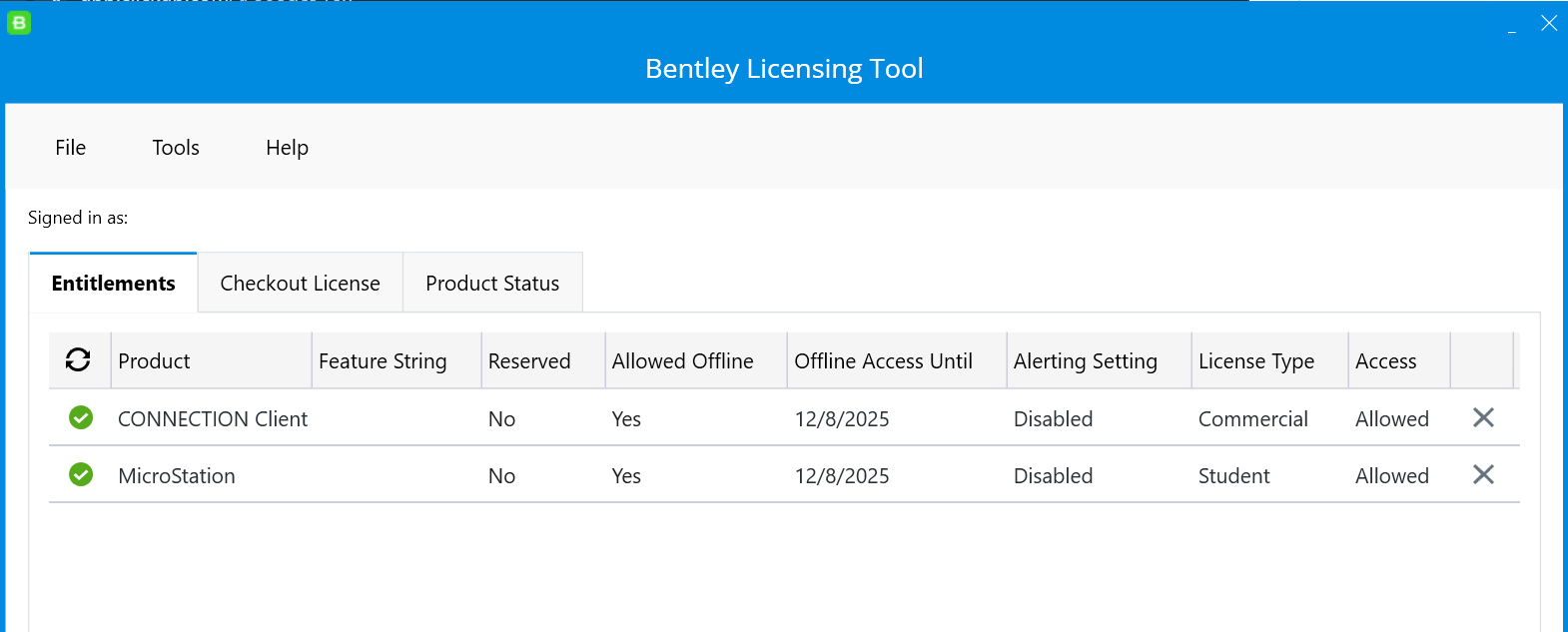
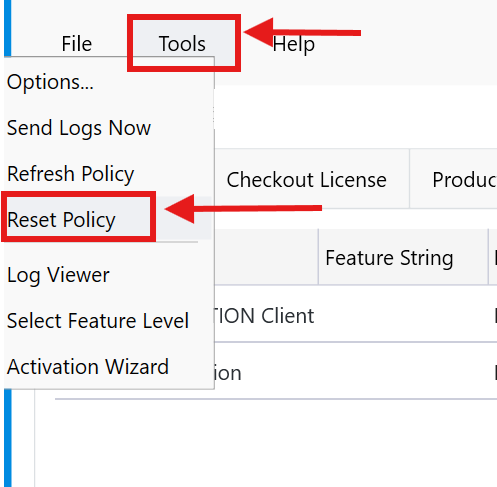
- Go to Tools and select Reset Policy.
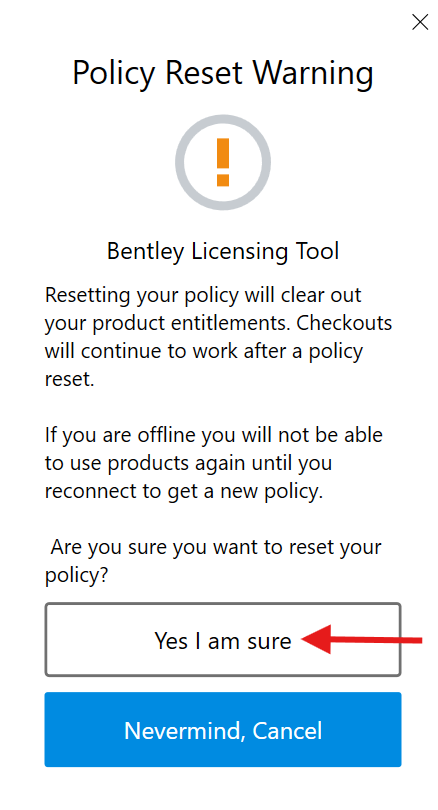
- Confirm that you would like to reset your policy.
- Close and relaunch your chosen software and the CONNECTION Client. Recheck the License Tool manager in the CONNECTION Client and you should now see the License Type set as Student as in the image on Step 2 above. This means the correct access is now active and you can use your software application.
FAQ: How can I resolve other types of connection failure?
If you have received a connection failure message, and you have not been able to resolve it by following the steps outlined above, you can explore the following resource in the Bentley Communities Knowledge Base some possible causes and solutions for connection failure: Connection Failure - Could not connect
If your CONNECTION Client update/reinstall fails, you may not have local admin rights to make changes to your network. This is often the case if you are attempting to download software onto a public network like a shared school computer: CONNECTION Client update fails or causes sign in issues if user doesn't have local admin rights
If these troubleshooting tips do not help, you can contact the Education support team at www.bentley.com/education/help.