| Navigation Options |
- Startup mode - Selects which of the basic mouse navigation modes to use as a default.
- Mouse sensitivity - Adjust this slider for faster or slower mouse camera movement driven by the mouse.
- Touch-screen Compatibility - Help user which have touch screen.
- Show control summary in view - Displays the illustrated navigation help window at the bottom of the screen.
- Start by playing animation - Begins the LiveCube session with an animation if one is present.
- Start in full screen - Expands the LiveCube window to the entire screen at startup time. Clicking alt+enter will also expand the LiveCube to the full screen.
- Show compass during navigation - Checking this option displays a compass in the lower left corner of the screen.
- Show BIM information - Check to show Building Information Modeling information.
- Photo options - Displays the Photo Options dialog for defining size and quality.
- Movie options - Displays the Movie Options dialog for defining resolution and quality.
|
| Display Quality |
If you click "Auto", the Quality and Resolution mode sliders display for adjustment.
- Quality mode - Adjusts the visible graphics quality. If set to less than 100%, it will reduce or eliminate various graphics effects such as real-time reflections, shadows, and animated plant and character movements.
- Resolution mode - If set to less than 100% will reduce the visible resolution to aid in performance.
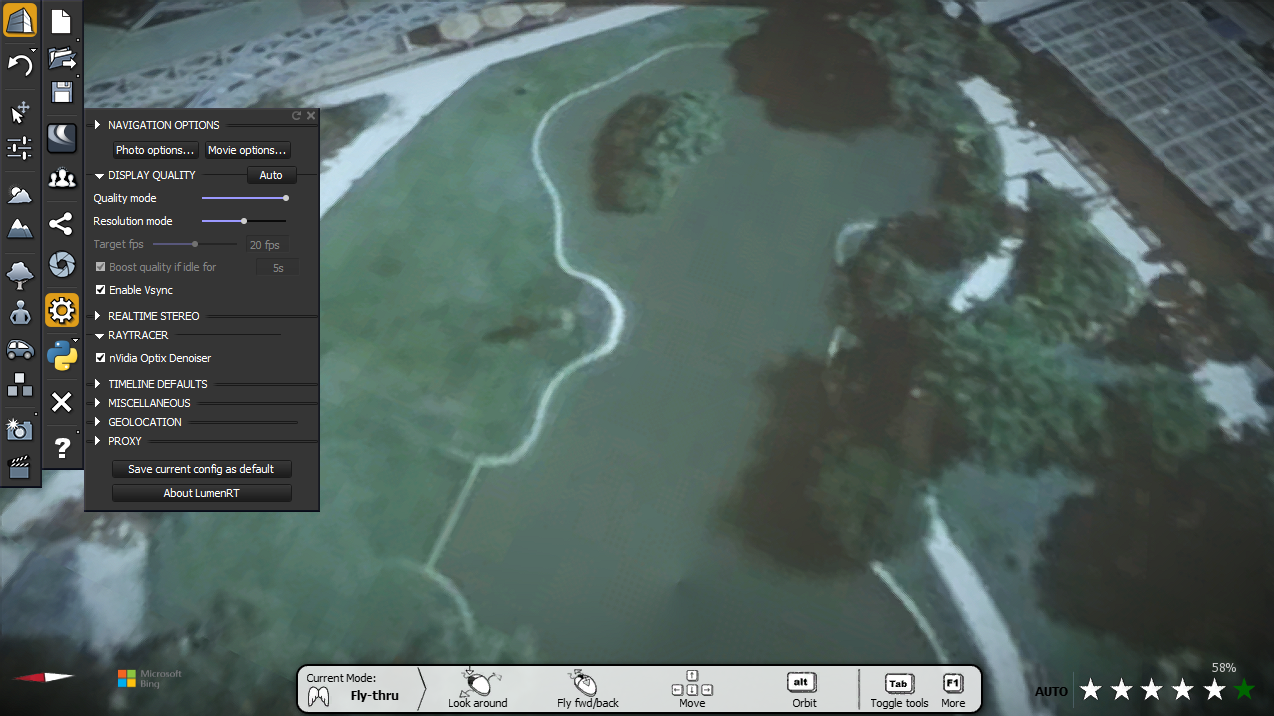
- Target fps - Indicate the frames per second rate.
- Boost quality if idle for - Check and set the time if using this option.
- Enable Vsync - You have the option to use Vsync if you choose.
|
| Realtime Stereo |
- Renders a view with a stereo effect (form the drop-down options). It is used for viewing with special red/blue filtered glasses in your scene. Stereo can be set side by side or top bottom.
- Separation - Sets the measured offset between the two rendered images. The Default is 65 millimeters, it can be adjustable as per the scene.
- To omit the Stereo command press 'Tab' key.
|
| RAYTRACE |
System having RTX card or if Raytracing is available, it shows "DX12/Raytracing" |
| Timeline Defaults |
- Pace - Use the slider to set the pace or speed of movement through the scene.
- Default pause time - Key in a value for the default pause information.
- Images are visible for - Key in a value for the time an image is visible until it moves to the next image.
- Set default transition - When clicked, this displays a dialog to define the duration and type of transition. There are several types of transitions available. You can set the duration of the transition, then select a type of transition from wipe to slide, push or empty.
|
| Miscellaneous |
- Units - Sets scene units to use metric or imperial units.
- Left-hand side traffic - When clicked, the traffic tool will create cars using left-hand rules.
- Quick Reload from Plant Factory - Automatically reload the vegetation from plant factory
|
| GEOLOCATION |
Define the GCS (Geographic Coordinate System). |
| PROXY |
|
| Set Current config as default |
Sets current configuration as default user setting |
| About LumenRT |
This displays a splash screen with product name and the number of the current product build. |