If you need to send updated versions of documents that were sent out in a previous transmittal, you can create and issue a new version of the original transmittal. The new transmittal version will only contain the updated documents that you choose to include and optionally any new documents that you add. You can upload a new version of any document from the original transmittal. Original documents will not be re-sent.
For example: a transmittal was issued, some documents were responded to with suggested changes, fixes were made to those documents, and now you want to send the updated versions of those documents in a new version of the original transmittal.
- Go to the Outgoing tab.
- Open the transmittal you want to create a new version of.
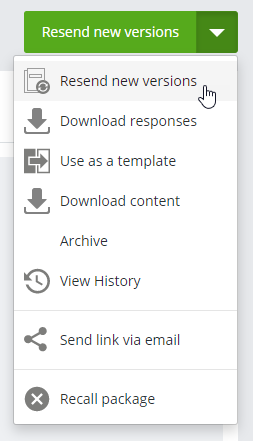
- Click Resend new versions in the upper right corner of the transmittal.
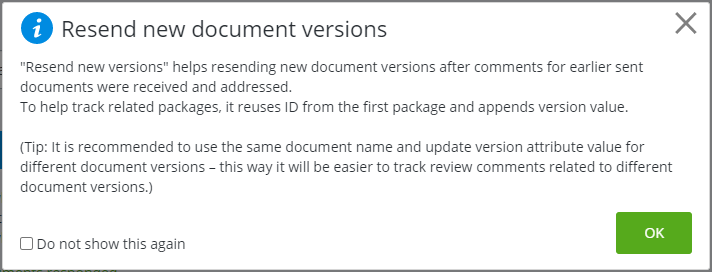
- The first time you use this feature, a message window opens, explaining how this feature works. Read the message and click OK.
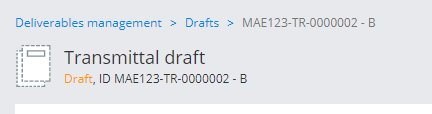
A new transmittal draft is created from the original transmittal. Initially the draft contains the same package ID, general information, recipients, and scheduling settings as the original transmittal.
- Click Save draft. (You must save the draft first before you can begin uploading any updated or new documents.)
When you save the draft for the first time, a version letter is appended to the package ID to denote that it is a new version of the original transmittal. For example:
Original transmittal ID:
MAE123-TR-0000001
New draft transmittal ID:
MAE123-TR-0000001 - B
- On the Documents tab, upload a new version of each document that has been updated and needs to be re-sent, and optionally add new documents.
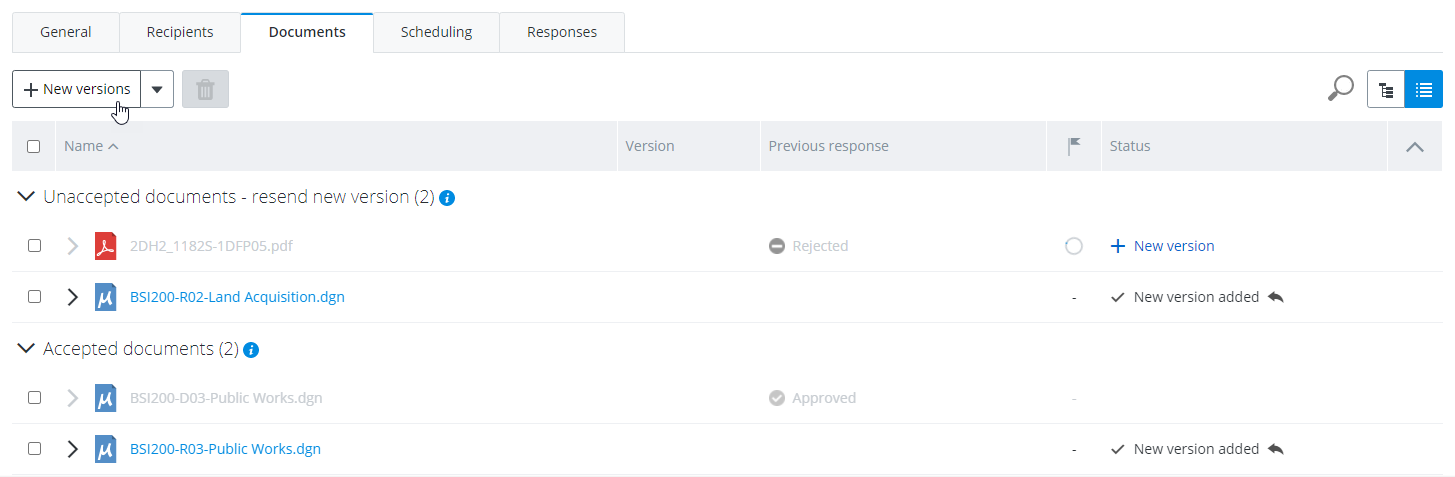
By default, the view is set so that documents are Grouped by acceptance, which divides the documents into two groups:
- Unapproved documents contains the names of the documents from the original transmittal that were not approved, and will also contain any new documents that you add.
- Approved documents contains the names of the documents from the original transmittal that were approved.
 [Note: The Issue column of the document list shows]
To upload a new version of an unapproved document:
- Expand the Unapproved documents group.
- Click the upload link (+ New version) in the Status field of the document that you want to upload a new version of.
- In the dialog that opens, either drag the new version into the dialog or click Browse to browse for the new version you want to upload.
- Enter a label for the new version (for example, v2).
- Click Upload. The new version is uploaded, and the Status field for that document now says New version added.
When you upload a new version of an unapproved document this way (one at a time), the file name of the new version can be different from the file name of the original document. If the names are different, the original document name will appear to the right of the new version, but crossed out.
Click the New versions button at the top of the Documents tab if you want to upload the new versions of multiple documents at the same time, or if you need to upload a new version of an approved document. When upload new versions this way, the names of the documents selected for upload must match the names of original documents otherwise they will not be uploaded.
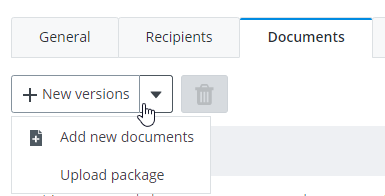
Click the menu next to the New versions button if you need to add any new documents to the new transmittal version. You can add one or more individual documents (select Add new documents) or a zip file containing documents (select Upload package).
Switch the view from Grouped by acceptance to Folder tree view if you need to create new folders or manage existing folders.
 Remember: You can upload a new version of any document, including documents that have been approved. Also, you do not have to upload a new version of a document just because it is unapproved and has an upload link next to it.
 - Change any other details as needed and issue the transmittal when finished.
You can issue the new version of the transmittal from either the portal or the ProjectWise Deliverables Management connector for ProjectWise Explorer, however if the transmittal contains any documents from ProjectWise Explorer, you must issue the transmittal using the ProjectWise Deliverables Management connector for ProjectWise Explorer.
The Outgoing tab, showing two issued transmittals: the second is the original, the first is a version of the original:
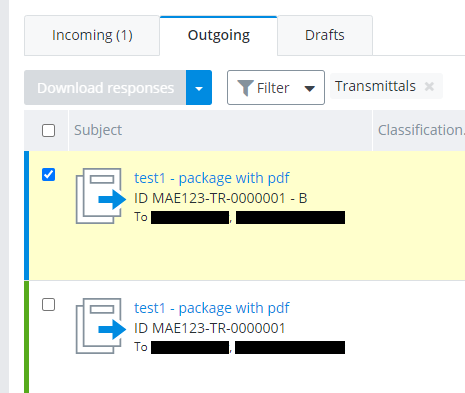
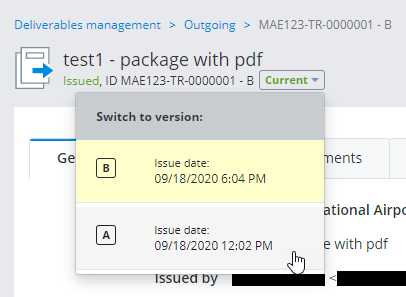
Once you issue a new version of a transmittal, you can open any version of that transmittal and switch between the versions in order to compare the differences. The latest version is referred to as the current version, and any earlier versions (including the original) are referred to as superseded versions.
Opening a superseded version of a transmittal and switching to a different version:
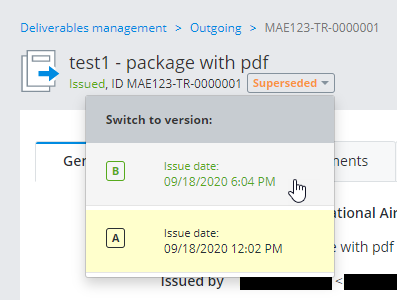
Opening the current version of a transmittal and switching to an earlier (superseded) version: