1. Select the type of transmittal draft you want to create:
| Draft Type | Do this |
| Blank | Click the New menu and select New transmittal.
 |
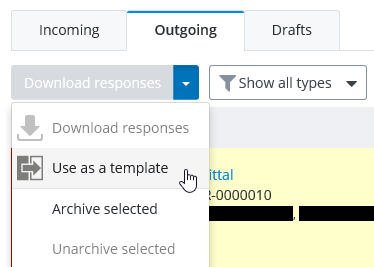
| From template | Click the check box next to a transmittal on either the Outgoing or Draft tab and select Use as a template.
 |
The Transmittal draft form opens.
-
- a subject (General tab)
- a purpose (General tab)
- a cover letter, generated from a selected template (General tab)
- at least one recipient (Recipients tab)
- at least one file (Documents tab)
- due dates for acknowledging and responding (Scheduling tab)
2. On the General tab, do the following:
-
- Subject - Enter a title that describes the transmittal.
- (Optional) Confidential data included - Turn this option on if you want to ensure that only the recipients of this transmittal (and also additional reviewers and delegate responders) will be able to open it.
Other team members will still see a record of it (name and ID) in their list of incoming submittals, but they will not be able to open it. The administrator and the transmittal author and issuer will always have access to it.
Tip: You can also turn this setting on from the Recipients tab. - Purpose - Select a purpose from the list.
- (Optional) Distribution rules - If distribution rules are configured for this project, select a distribution rule from the list.
When distribution rules are configured for the project, selecting a purpose filters the Distribution rules list to display only the distribution rules that are related to the selected purpose.
The selected distribution rule automatically adds pre-selected recipients with fixed acknowledge and response settings, sets the maximum response date and time for those recipients, and sets the required document attributes.
If the selected distribution rule also specifies any pre-selected additional reviewers for a given recipient, the additional reviewers do not appear on the Recipients tab. Instead, a note is added in the Details column on the Audit Trail tab, listing which additional reviewers were selected to send responses to which original recipient.
Distribution rules exist in the project when the administrator configures the document distribution matrix in the ProjectWise Deliverables Management portal. If there is no document distribution matrix, then there will be no distribution rules to choose from in this list.
- (Optional) Comments - Write a brief note to the recipients of the transmittal.
- Classification - Select a classification from the list to assign to the transmittal.
Classification labels are used to categorize transmittals, submittals, RFI's, and general correspondences into the parts of the project they relate to.
Classification labels are completely customizable in each project and are defined by the administrator in the portal settings. The administrator can also decide whether to make assigning a classification required or optional. If the Classification list is not present at all, it means the administrator has not defined any classification labels for this project.
- Cover letter - Either leave the default cover letter template selected, or click Change to select another one.
3. Use the Recipients tab to select which internal and external project participants you want to send this transmittal to.
See To Add Recipients to a Transmittal Draft.
4. Use the Documents tab to add files from the network or local file system to this transmittal.
See To Add Documents to a Transmittal Draft.
5.Use the Scheduling tab to set due dates and reminders for acknowledging and responding to the transmittal.
See To Set Due Dates and Reminders for the Transmittal.
6. Depending on how complete the transmittal is, click one of the following:
- Save draft - if you want to save your changes so far but leave the draft open for further editing
- Close - if you want to close the draft after saving it (you can open it for editing later)
- Send for review & issue - if you want to send the transmittal to another internal participant before issuing it
- Issue - when you are ready to send the transmittal to the recipient(s)
