Drawings used in this example are: Eastcity_Lots.shp, Eastcity_Roads.shp, and SW.jpg from the Bentley Map Fundamentals training dataset.
This preliminary setup was done: Start MicroStation V8i and open Eastcity_Lots.shp then save it as Eastcity_Lots.dgn. This assigns the GCS from the collection of shapefiles to the DGN. The same was done with Eastcity_Roads.shp.
Assign a new GCS to each DGN as shown in the table below. The new GCS is the equivalent MicroStation GCS to the one in the shapefile.
NOTE: When assigning a GCS that is equivalent to the current GCS, the Geographic Coordinate System Changed dialog is unnecessary and does not display.
|
Filename
|
GCS from the original shapefile
|
Equivalent GCS in MicroStation
|
|
Eastcity_Roads.dgn
|
GCS_North_American_1983
|
LL83
|
|
*Eastcity_Lots.dgn
|
NAD_1927_UTM_Zone_17N
|
EPSG:26717
|
*Images in the dataset (SW, SE, CW, CE, NW, NE.jpg) align with Eastcity_Lots.dgn. They do not have a GCS.
The result of the setup is: Eastcity_Lots.dgn and Eastcity_Roads.dgn which cover overlapping areas but have different GCS. The SW.jpg image when attached to the Lots drawing is properly aligned without any GCS assigned to it. When that same image is attached to the Roads drawing it does not align.
The example below shows how to reproject SW.jpg to align with the Roads drawing and then resample, or make a new, SW.jpg with the GCS that matches the Roads drawing.
Image Reprojection
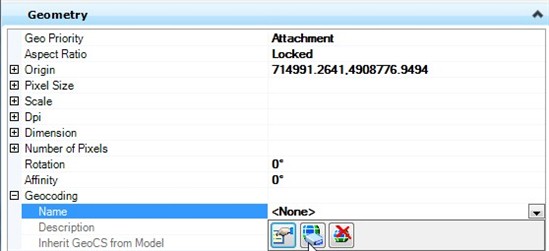
The Geographic Coordinate System (GCS) settings for images can be edited in the element information dialog for the image element. The settings are in the Geometry section under Geocoding. The settings are: Name, Description, and Inherit GeoCS from Model. Name and Description relate to those in MicroStation’s GCS library. By clicking to the right of the Name (to assign a value) three tools are available. The first is to display the properties of the GCS of the image, the second to assign a GCS to the image from the library, and the third to delete the GCS of the image. Inherit GeoCS from Model refers to the model the image is attached to and can be set to inherited or not inherited. i.e. The image can get its GCS from the model it is attached to or not.
The settings can be viewed in Raster Manager by displaying the columns Inherit GeoCS from Model and Coordinate System. In addition the GCS can be assigned or deleted by right clicking on an image in Raster Manager and from the menu, select Coordinate System > Select from Library… or Delete.
In the above image, only the first image, with the check mark, gets its GCS from the model it is attached to.
Generally, raster images attached to a DGN follow the vector elements of the DGN model they are attached to.
To enable an image, that is attached to a model to reproject:
· The image must have a GCS.
· Inherit GeoCS from Model must be set to not inherited.
Image reprojection always occurs from the image GCS to the GCS of the model it’s attached to.
Like reference files, attached images are reprojected “on the fly”, without writing to the image. The reprojection is a display only change done in memory. It can be printed but, the image cannot be edited. To edit an image that was reprojected it must be resampled to the current reprojected GCS. Descartes is required for this operation. The new resampled image will align with the master model, not reprojected, and can be edited.
Raster images attached to a drawing that is attached as a reference file can also reproject.
For additional information see MicroStation’s help, Managing References and Raster Images > Modifying Raster Attachments > Reprojecting Images.
Read through these exercises to gain a better understanding of this functionality.
To Reproject an image to a DGN that has a different GCS
1. Open Eastcity_Lots.dgn and attach SW.jpg: disable open interactively, disable Open Settings Dialog. The GCS of this drawing is EPSG:26717.
Note that the image aligns with the vector geometry and it has no GCS so, it is not reprojected.
2. Open Eastcity_Roads.dgn
3. Attach SW.jpg the same way: disable open interactively, disable Open Settings Dialog.
Note it does not properly align with the master file. It must be assigned a GCS so that it will reproject and align properly.
4. In Raster Manager, Right Click on SW.jpg. Select Coordinate System > Select from Library… or double click on the image and go to the Geometry section.
5. Select GCS from Library and select the GCS that this image properly aligns to: EPSG:26717.
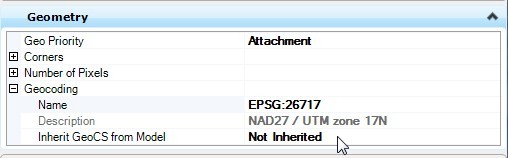
The image is re-projected “on the fly”, to align with the master file. It is reprojected from the image GCS (EPSG:26717) to the drawing GCS (LL83).
6. Optional: To see the effect of inheriting the GCS from the model, just check this setting in Raster Manager. The image is no longer reprojected and disappears. Make sure you uncheck this option before continuing.
NOTE: Editing tools cannot be used on this re-projected image. To edit the image while attached to this DGN, it must be permanently re-projected to the GCS of the DGN it is attached to.
To permanently Re-project an image
1. Continued from above.
2. Use Raster Manager to select SW.jpg, right click, select Save-As. Assign a name like: SW_LL83.jpg.
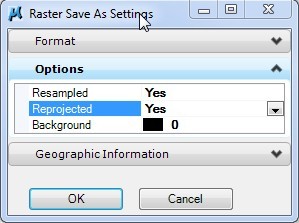
3. In the Save Raster As dialog, click the Options button.
4. In the Options section set Resampled to Yes.
When Resampled is set to yes, the Reprojected option is available, but only if Descartes is loaded. With Reprojected set to Yes, the image will be reconstructed pixel by pixel and the GCS from the master DGN will be assigned. If it is set to no, or is not available, the image is reconstructed pixel by pixel and assigned the current GCS (EPSG:26717).
5. Set Reprojected to Yes.
The new image is created and attached and the previous image is detached.
6. Note that in Raster Manager, or from the image element information, LL83 is assigned as the GCS and the GCS is not inherited.
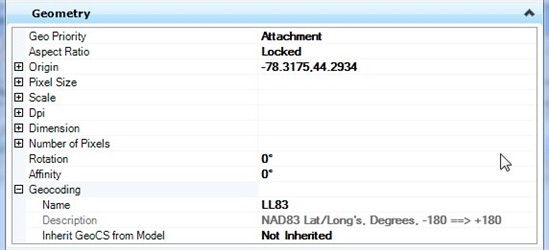
7. To illustrate that the new image was reprojected to LL83 delete the GCS. In Raster Manager, Right Click on SW_LL83.jpg. Select Coordinate System > Delete.
Note that the image is still aligned. Double click to open the image settings, expand the Geometry section and note that there is no GCS and Inherit GCS from Model is automatically set to inherited.
Descartes editing tools can now be used to edit the image.