| Settings | Description |
| 1. Tools Options | Contain with measurement, setback, section and civil tools . Visit Tools for detailed discussion. |
| 2. Element View Options |
- Clear Selection - Lets the user un-select all selected elements.
- Focus Selected Elements - Focuses in and centers the selected element to the middle of the screen.
- Change Visibility - Displays a tool letting the user change the visibility of the selected element.
- Hide - Provides options to hide selected Elements, Categories and Models.
- Isolate - Provides options to isolate the selected Elements, Categories and models.
- Emphasize - Lets the user emphasize selected elements while greying out the other elements.
|
| 3. Element selection |
- Selected Single - Single selection method that allows the selection of individual elements.
- Select by Crossing Line - A multi-selection method. All the objects crossed by the line drawn on screen will be selected.
- Select by Box Corners - A multi-selection method. All the objects within the square drawn on screen will be selected.
- Replace Current Selection - Allows the replacement of the existing selecting method with a new one.
- Add to Selection - Allows the additions of more objects to the current selection by selecting new objects on screen.
- Remove from Selection - Allows the removal of objects from current selection by selecting the objects you want to remove from selection.
|
| 4. View Options |
- Rotate About Point - Allows user to rotate the model at the selected point.
- Pan - Allows user to move or pan around the model. Select any point on the model pan in the direct you want to move.
- Fit View - Fits model or selected elements into center of the screen.
- Window Area - Lets the user create a window and zoom in on the created window.
- View Previous - Allows user to select between different camera positions previously viewed.
- View Next - Allows user to select between different camera positions previously viewed.
- Search Address - Allows user to search for an address worldwide.
|
| 5. View Cube |
Allows user to click on the cube and rotate. The cube and the 3D model will rotate around the center of the 3D view window. Selecting one of the View cubes options (Front, Back, Top, Bottom, Left, Right) sets the camera to show the scene from the selected option.
|
| 6. Camera Options |
- Setup Walk Camera - Sets up the camera position and look direction for the Walk Around.
- Walk Around - Used to interactively "walk" through a 3D view of a model.
- Camera on/off - Gives the option to view the model in Isometric or Perspective view.
|
| 7. Layers and Properties |
- Visibility Tree - Allows user to turn on or off elements by using the Model Tree, Categories, or Spatial Containment.
- Search for Elements - Search for elements by user label or code value.
- 2D Views - Search for and display existing 2D views.
- Map Layers - Display and create map layers.
- Reality Data -
- Properties - Allows user to reference the attributes assigned to the elements form the design software.
|
| 8. Issues, Data Visualization, Civil Reports | Display a list of Issues associated to the iModel, Data Visualization, Civil Reports and Analysis. |
| 9.Messages | Shows error messages or messages from some tools |
| 10. Identify element | Identify selected element |
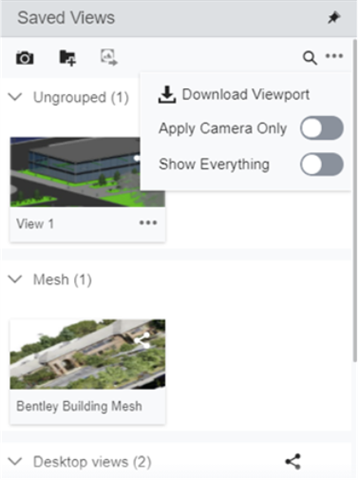
| 11. Saved Views |
Allows user to save multiple views for ease of access to quickly view different part of the model.
|
| 12. Diagnostic Tools | Displays the diagnostic tool options. |
| 13. Presentation | Allows user to switch between different render modes (Smooth Shade, Solid Fill, Hidden Line, Wireframe), and View Attributes. |
| 14.Snap Mode | Displays the available snap options to select elements. |
| 15. Selection Scope |
Allows user to switch between Element, Assembly and Top Assembly.
|
| 16. Settings | Allows user to switch the unit system from Imperial to Metric. |
| 17. Frontstages |
These are different scenarios from the iModel
|