
| | | | |
| | Applies To | | |
| | | | |
| | Product(s): | Bentley MXROAD | |
| | Version(s): | 08.11.07.494 | |
| | Environment: | N/A | |
| | Area: | | |
| | Subarea: | N/A | |
| | Original Author: | Jason Walsh, Bentley Technical Support Group | |
| | | | |
Steps to Accomplish
- Open Create Profile tool (MX>Analysis>Create Profile)
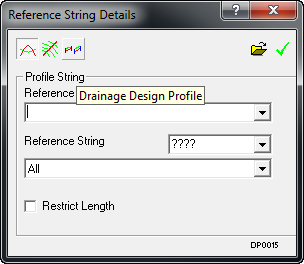
- Select the Drainage Design Profile button. Select Drainage scheme and set spacing value.
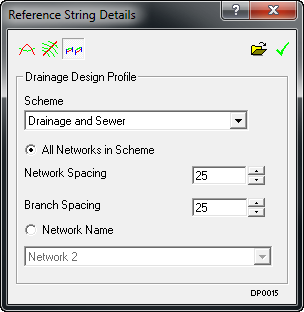
You can also limit the profile creation to a specific network.
- The Profile Surface Details panel will appear. You can set colours and styles in this panel.
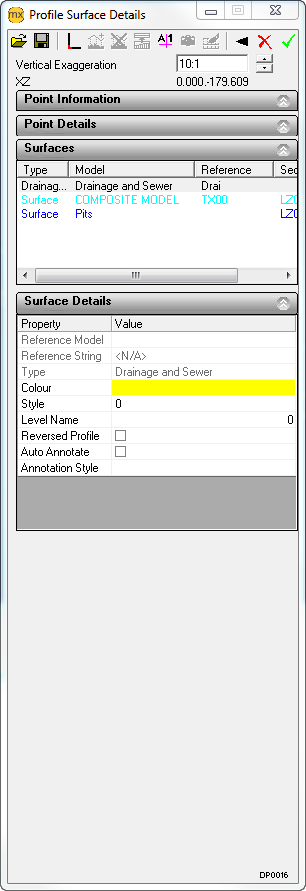
- Click the Green Tick to place the Drainage Sections on the page.
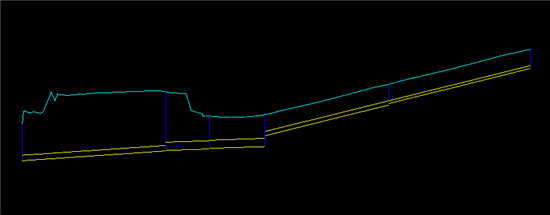
- You need to annotate the section using and MXtips annoation file. Load the Geometric Annotation tool (MX>Draw>Annotate Drawing or Pages)
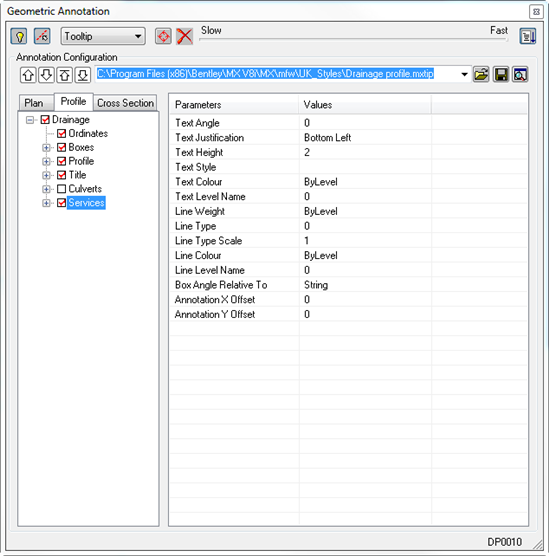
Select a drainage annotation MXtips file, i.e Draiange Profile.mxtips. You can toggle on and off options as you require and can set the colours and text to what you require for the drainage profile.
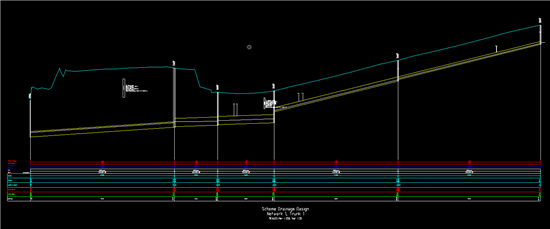
- The default drainage profile annotation using Draiange Profile.mxtips is shown below.
See Also
MX Support Clips, TechNotes & FAQs
Drainage Design