To Create an Instance of an Asset in a Room, Using Room Book in Manager
- In the Browse window Bentley Facilities Manager, navigate to, select, and right-click a room, then choose Room Book from the pop-up menu.
The Room Book dialog box opens.
- In the Room Book dialog box, click Create.
The Select Asset Class dialog box opens.
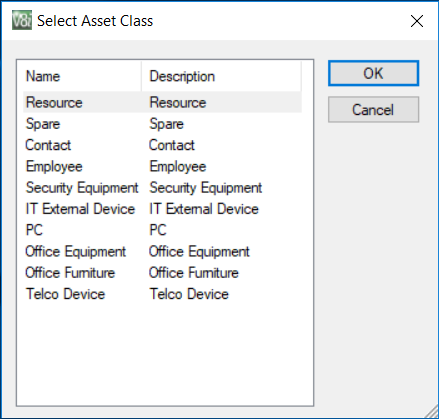
- Select the class of asset to create and click OK.
The Select Asset Class dialog box closes and the Create dialog box opens for the selected asset class.
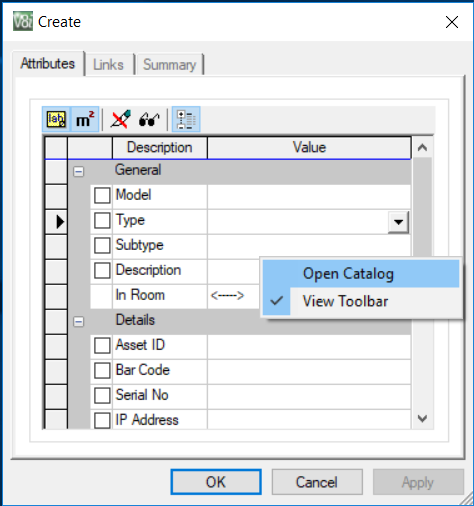
- In the Create dialog box's Attribute window, right-click and choose Open Catalog from the pop-up menu.
The Catalog dialog box for the selected class of assets opens.
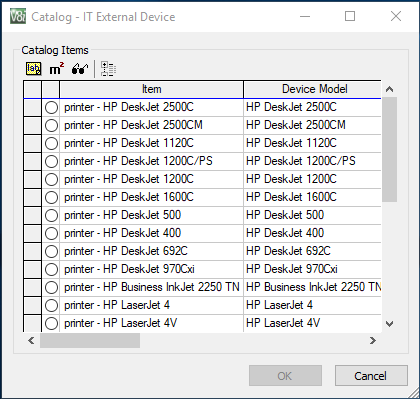
- In the Catalog Items window, select an asset and click OK.
The catalog attributes for the selected asset display in the Create dialog box. If you move your cursor over a view window, you will see the asset attached to the cursor.
- (Optional) In the Create dialog box's Attribute window, change any of the selected asset's attributes by selecting the attribute, entering the appropriate value, and pressing <Enter>.
- Click OK.
A message opens asking, Are you sure you want to create a container?
- Click Yes.
- In the Properties dialog box that opens, type a name for the container, press <Enter>, then click OK.
The new asset is placed inside of the new container for temporary storage until you can unpack it using Bentley Facilities Planner. The container displays among the list of assets in the Room Book dialog box.