The following iModel options are available from under Administration > Mange iModel > iModel Container > Option menu.
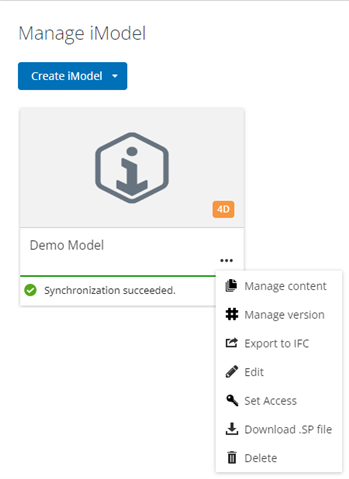
Manage version
Named Version are the milestones of any infrastructure design project. Ideally named versions are meant to be created when certain milestone of the project is reached and those will need to be reviewed by stakeholders. Those Named Versions can be based on a stage of the project completion or it can be time-bound to check the progression of the project.
- To view changes and create a named version select the meatball menu option in the iModel container, then select View Changes and Named versions.
- Every change made to an iModel creates an iModel timeline entry. In the iModels Changes tab, you can see the sequence of all immutable changes, capturing when the engineering data has been changed.
- Change information can be found by selecting the Information Panel icon, and the thumbnail view will the change properties.
- Find the last required change in the timeline, then select the Create Named Version icon.
- A Create a Named Version dialog will open. Add a version Name (required) and a version Description (optional), then click Create.
Note: You can see which change is the last included from the timeline as well as what is the name of the previously created Named Version.
- After creating the named version, you will be taken to Named Versions tab. You can open the iModel viewer, change the Name and Descriptions directly from here.
Export to IFC
- From the iModel Manager, select the meatball menu option in the iModel container, then select Export to IFC.
- You will see the following IFC export interface.
Select destination folder - Select a folder in Documents or a connected PWDI to save the IFC to.
IFC format - Select the IFC format. Currently supported formats are IFC 4.3, IFC 2X3, IFC4 RV 1.2 and IFC 2X3 CV 2.0.
User-defined mapping (Optional) - You can select a custom mapping file to be used for the IFC Export. The default mapping file can be found here: Schema mapping.
Save logs (Optional) - You can chose to have the log files copied to the same location as the generated IFC file. - Upon clicking Export, a message will appear near the top of the window. You will get an email once the export is completed.
Edit
- From the iModel Manager, select the meatball menu option in the iModel container, then select Edit.
- From the Edit iModel window the iModel Name, Description, and Cover Photo can be updated. Once complete click the Update button.
Scheduling Services
This option prepares the iModel to be opened from SYNCHRO 4D Pro and sets up a scheduling repository for collaborative workflows.
- From the iModel Manager, select the meatball menu option in the iModel container, then select Edit.
- From the Edit iModel window, check/un-check the Use this iModel for scheduling services, then click the Update button.
- If there's an existing 4D iModel in the Contor project, upon enabling the scheduling services, a confirm deletion window will open. Type delete in the field to confirm deletion, then click the Delete button.
Note: If the new iModel is converted to 4D iModel, all the scheduling data from the previous iModel will be deleted, and only the new iModel will be available in 4D Pro. There is no way of undoing this action. - Advanced iModel settings are available only for 4D iModels.
Process iModel properties (recommended) - Converts all iModel properties to User Fields within SYNCHRO 4D Pro.
Process non-3D user fields - Makes non-3D User Fields from SYNCHRO 4D Pro available through APIs and Power BI Connector.
Process 3D user fields - Makes 3D Objects User Fields from SYNCHRO 4D Pro available through APIs and Power BI Connector.
Ignore wireframe objects
Tessellation detail level
iModel synchronization into SYNCHRO 4D - Set a schedule to convert iModel updates to 4D Pro. Live looks for changes every 5 min and updates models automatically, though the time depends on the size of data changes.
Update iModel SYNCHRO 4D Pro Version
- If the iModel was created with a previous version of SYNCHRO 4D Pro and you are now using a newer version, the iModel will also need to be upgraded. Through the meatball menu option in the iModel container, select Edit.
- From the Edit an iModel window select the SYNCHRO 4D Pro Version dropdown, then select the required version of 4D Pro.
- A Confirm Upgrade window will pop up notifying you that you will no longer be able to open the project in older versions of SYNCHRO 4D Pro.
Note: It is recommended to save the project as an .SP file from 4D Pro before upgrading in case you need to restore the old version later.
Set Access
- From the iModel Manager, select the meatball menu option in the iModel container, then select Set Access.
- From here you can assign View/Read/Write/Manage permissions for each Role.
Download .sp file
- For a 4D iModel, an up-to-date .SP file can be downloaded from the iModel container without having to access 4D pro. Select the meatball menu option in the iModel container, then select Download .sp file.
Delete
If an iModel is no longer needed, the following steps can be followed to delete.
- Select the meatball menu option in the iModel container, then select Delete.
- A Delete iModel window will open. Deleting the iModel will remove access for all users and all data will no longer be available. Select Delete.